1
Sidebar
Clients, Sessions and Settings are in the sidebar on the left. Sessions lists every recording grouped by client, with Note ready, Writing note… or Write note on each row.
User manual · Annavas 2.0
Watch the short tutorial, then use the sections below for every screen in the app.
Tutorial 1 · Getting started (1 min 20 s). Create your account and add a colleague’s referral code for 30 days free, start your free trial, add your first client with their consent, and find your own referral code to share. Everything you record stays on your own computer.
New in Annavas 2.0
Coming from an earlier version? Chat is now the Ask tab, Settings is a full page, and every client has one page with tabs. Here is where things moved.
Clients, Sessions and Settings are in the sidebar on the left. Sessions lists every recording grouped by client, with Note ready, Writing note… or Write note on each row.
Press Ctrl+K (Cmd+K on a Mac) to search clients from any page. The + button at the top starts a new session or adds a new client.
Each client page has three tabs: Sessions, Psychologist’s Notes and Ask. Start session and Edit are in the client header.
After you stop a recording, press Write note. Notes open formatted for reading; click Edit to change anything, then Save.
View transcript opens the session by speaker, with search and copy. Name each voice once (You, Client, Partner / family or Other person). Playback has a waveform you can click or drag, with subtitles.
Press Lock now in the sidebar (Ctrl+Shift+L, or Cmd+Shift+L on a Mac) to lock Annavas. It also locks itself after a few minutes away, and opens with Touch ID, Windows Hello or your password. A recording keeps going while it is locked.
Create your account once. It keeps the key that unlocks your notes, so you can get back in on a new computer.
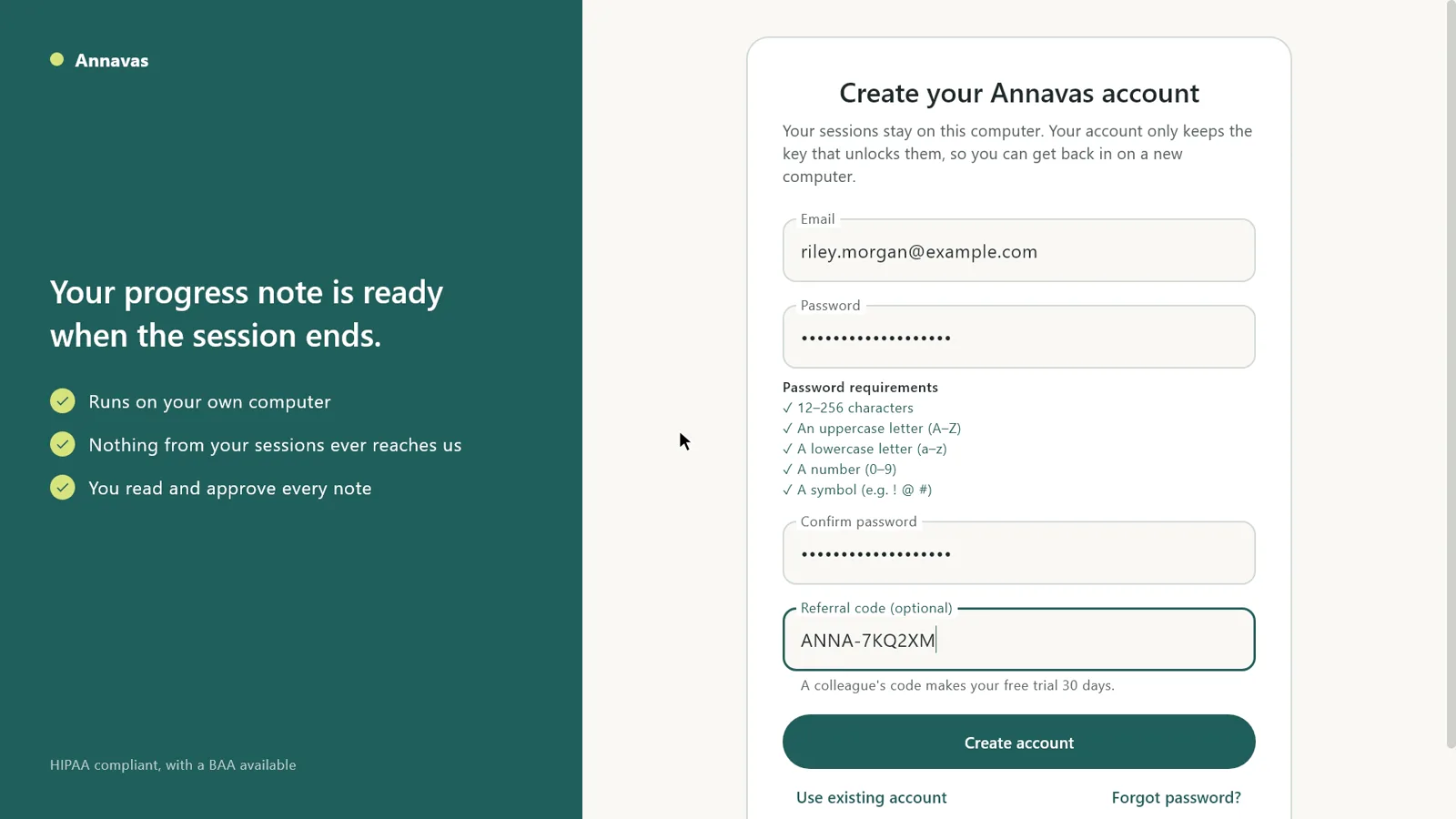
Open Annavas and choose Create account. Enter your email and a password. The checklist under the password shows what it still needs.
If a colleague gave you a referral code, type it in the Referral code box. Your free trial becomes 30 days instead of 15.
We email you a code. Type it in and choose Confirm email. That is the only time we need it.
Your account only keeps the key that unlocks your notes. Recordings, transcripts and notes stay locked with encryption on your computer.
Choose Forgot password? on the sign-in screen. We email a reset code, and you choose a new password.
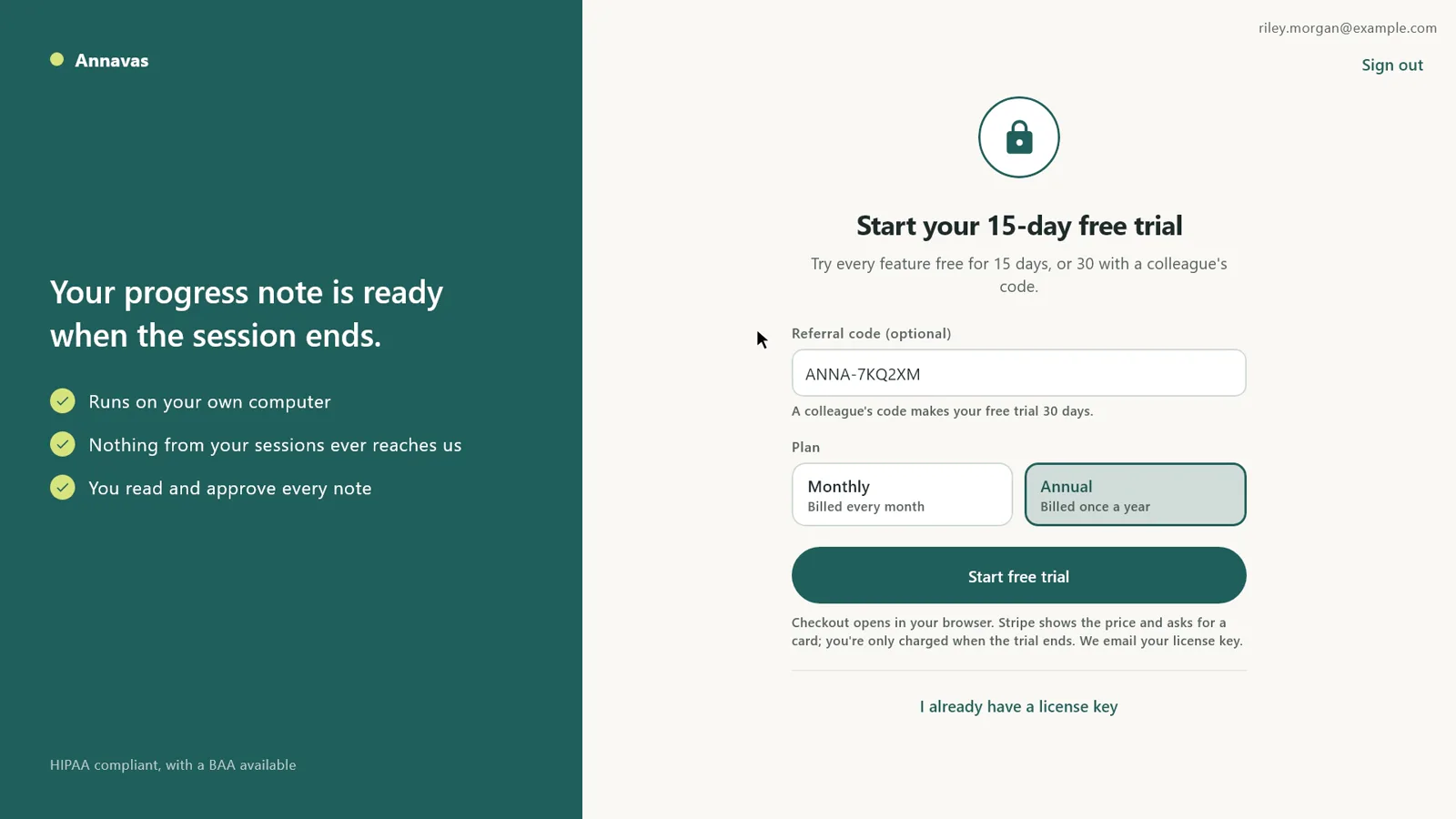
Everyone starts with 15 days free, or 30 with a colleague’s code. A card is needed to start; you are only charged when the trial ends.
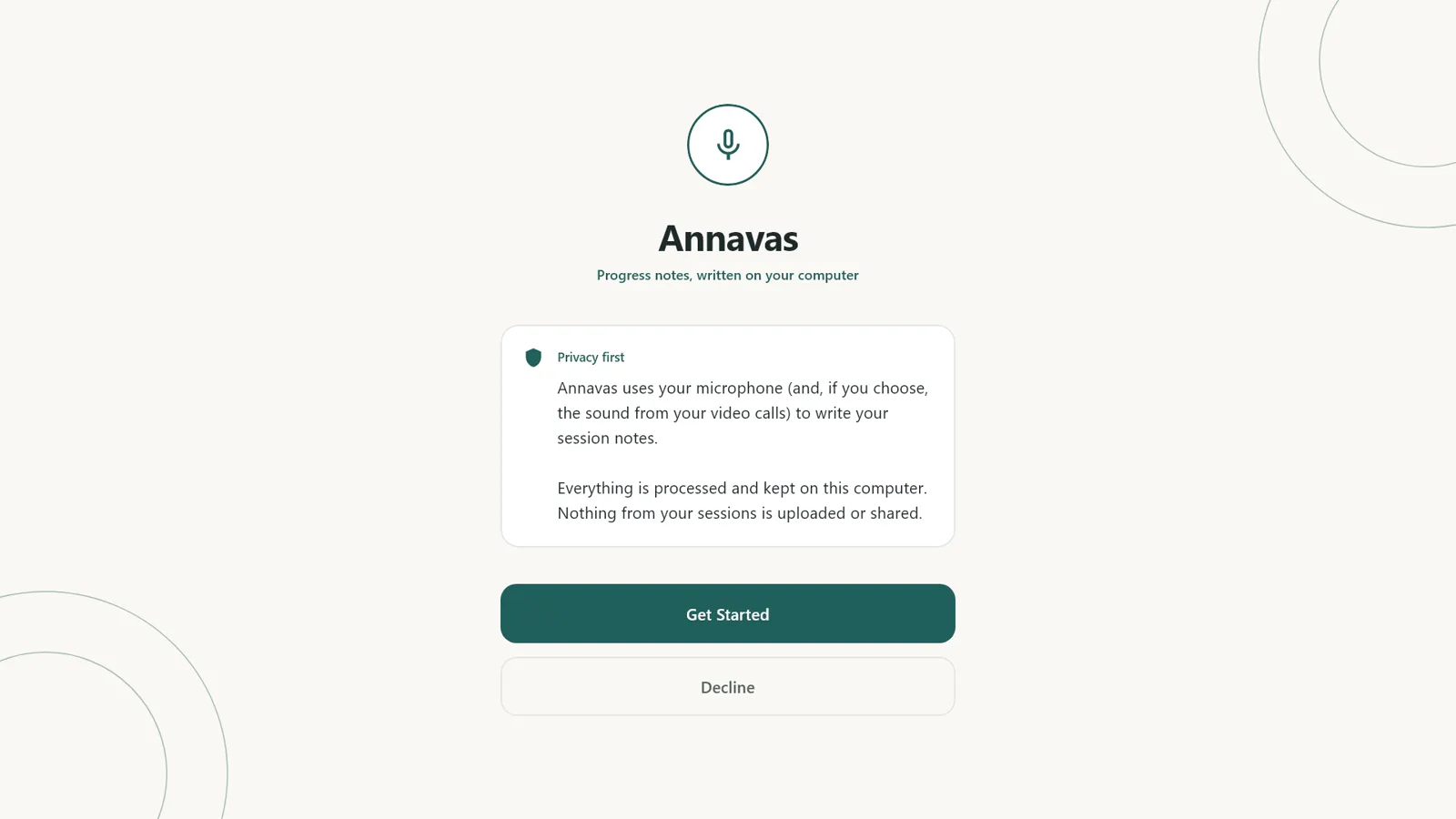
The first screen explains how Annavas works: it uses your microphone (and, if you choose, the sound from your video calls) to write your notes, and everything stays on your computer. Choose Get Started.
If you entered a referral code when you created your account, it is already in the Referral code box. You can also add or change it here.
Pick a plan: $49.99 a month, or $499.99 a year. Then choose Start free trial. Checkout opens in your browser.
Stripe asks for a card to start the trial and charges it only when the trial ends. Cancel before then and you pay nothing.
We email your license key and Annavas picks it up. If you already have a key, choose I already have a license key, paste it and choose Activate.
Clients, Sessions and Settings live in the sidebar. Search and the + button are at the top of every page.
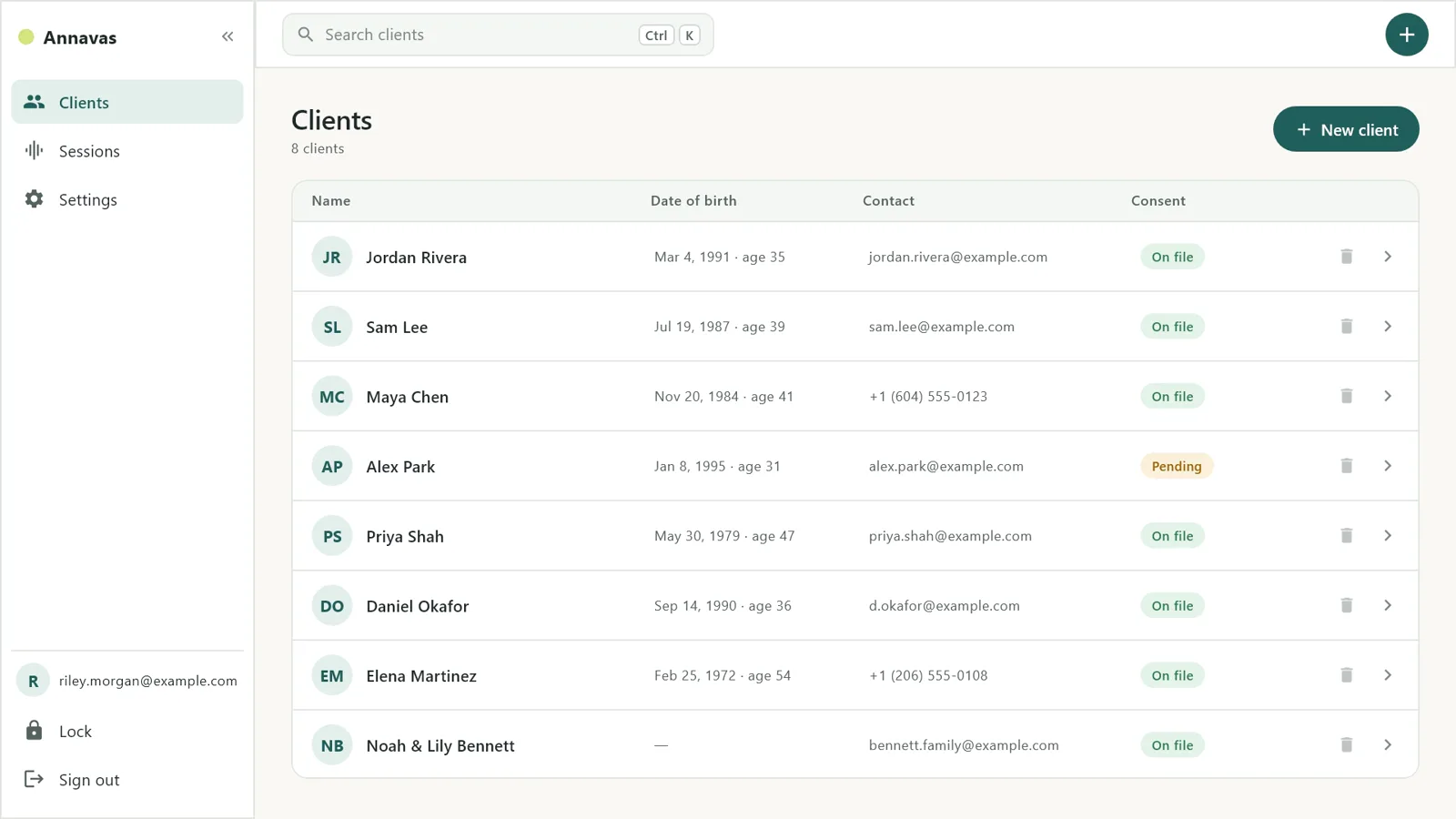
Clients lists everyone you see. Sessions lists every recording, grouped by client. Settings has all your options on one page. Your account, Lock and Sign out are at the bottom.
Press Ctrl+K (Cmd+K on a Mac) to jump to the search box from any page, then type part of a name or email. Esc clears the search.
The + button at the top right starts a New session or adds a New client from any page.
Each row shows the client’s name, date of birth and age, contact details and consent: On file or Pending. Click a row to open the client’s page.
The bin icon on a row deletes the client’s profile. Their recordings move to Not assigned on the Sessions page, so nothing is lost by accident.
Only first and last name are required. Everything you enter is kept locked with encryption on your computer.
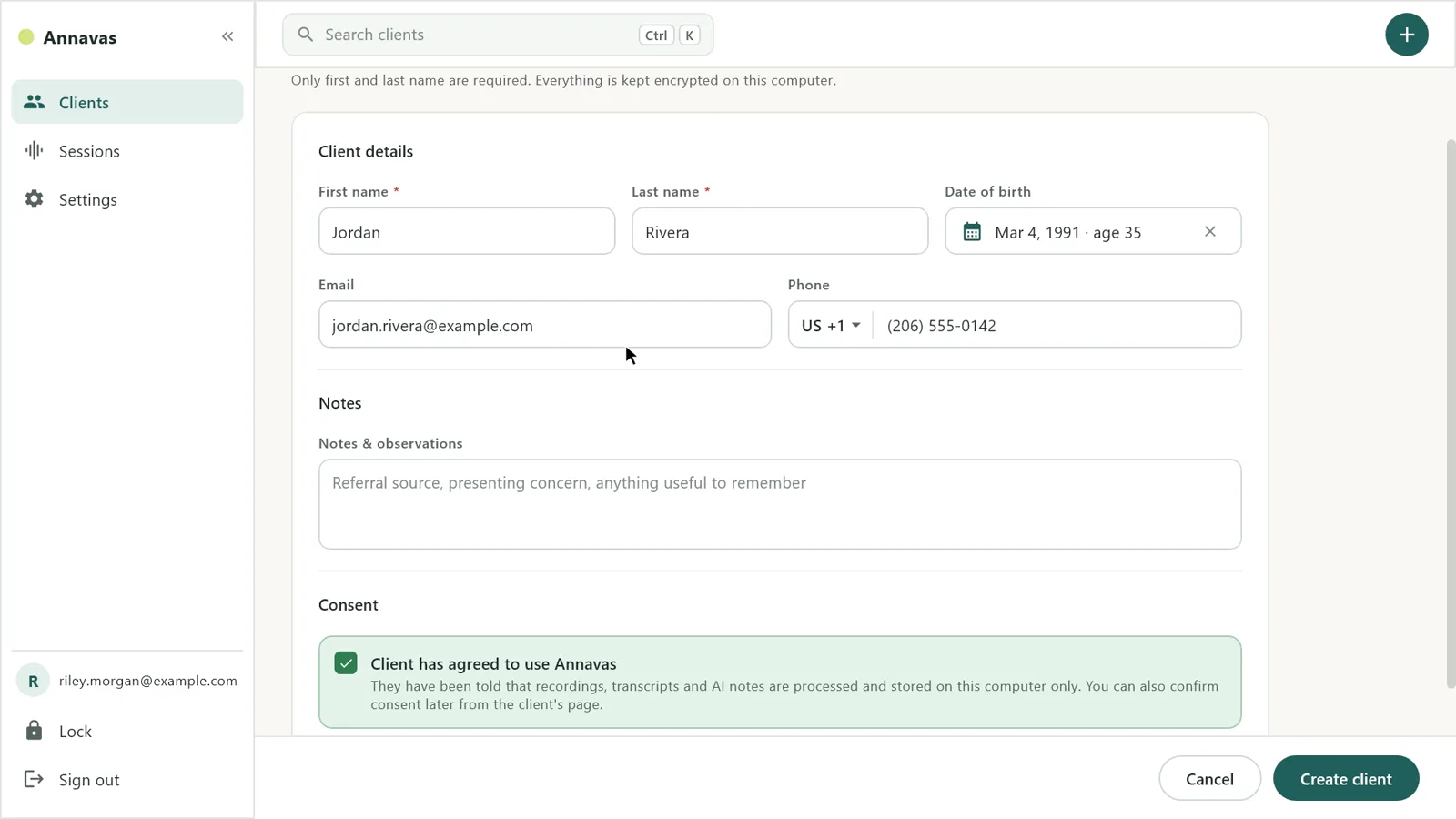
Enter first and last name. Letters, spaces, hyphens and apostrophes all work, in any language.
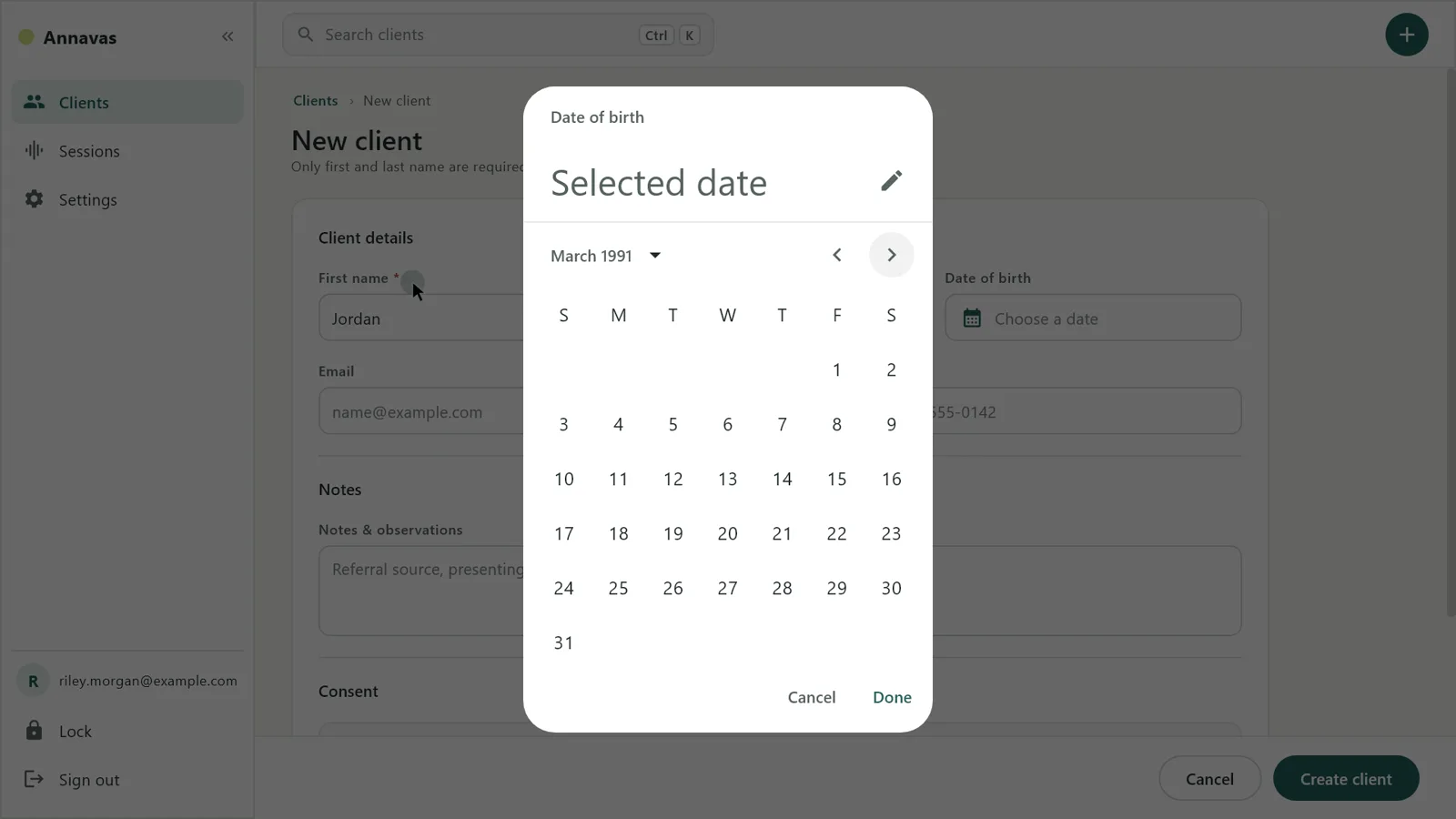
Click the date of birth box and pick the date from the calendar. Annavas shows it as Mar 4, 1991 · age 35.
Annavas checks the email address when you leave the box. For phone numbers, choose the country (United States and Canada are first) and the number formats as you type.
Add anything useful to remember, like the referral source or presenting concern.
Tick Client has agreed to use Annavas and confirm. You can also confirm consent later from the client’s page. Clients without consent show as Pending.
Choose Create client. A short Client added message confirms it. To change details later, open the client and choose Edit.
Start a session from the client’s page. It works in person and for Zoom, Google Meet or any video call.
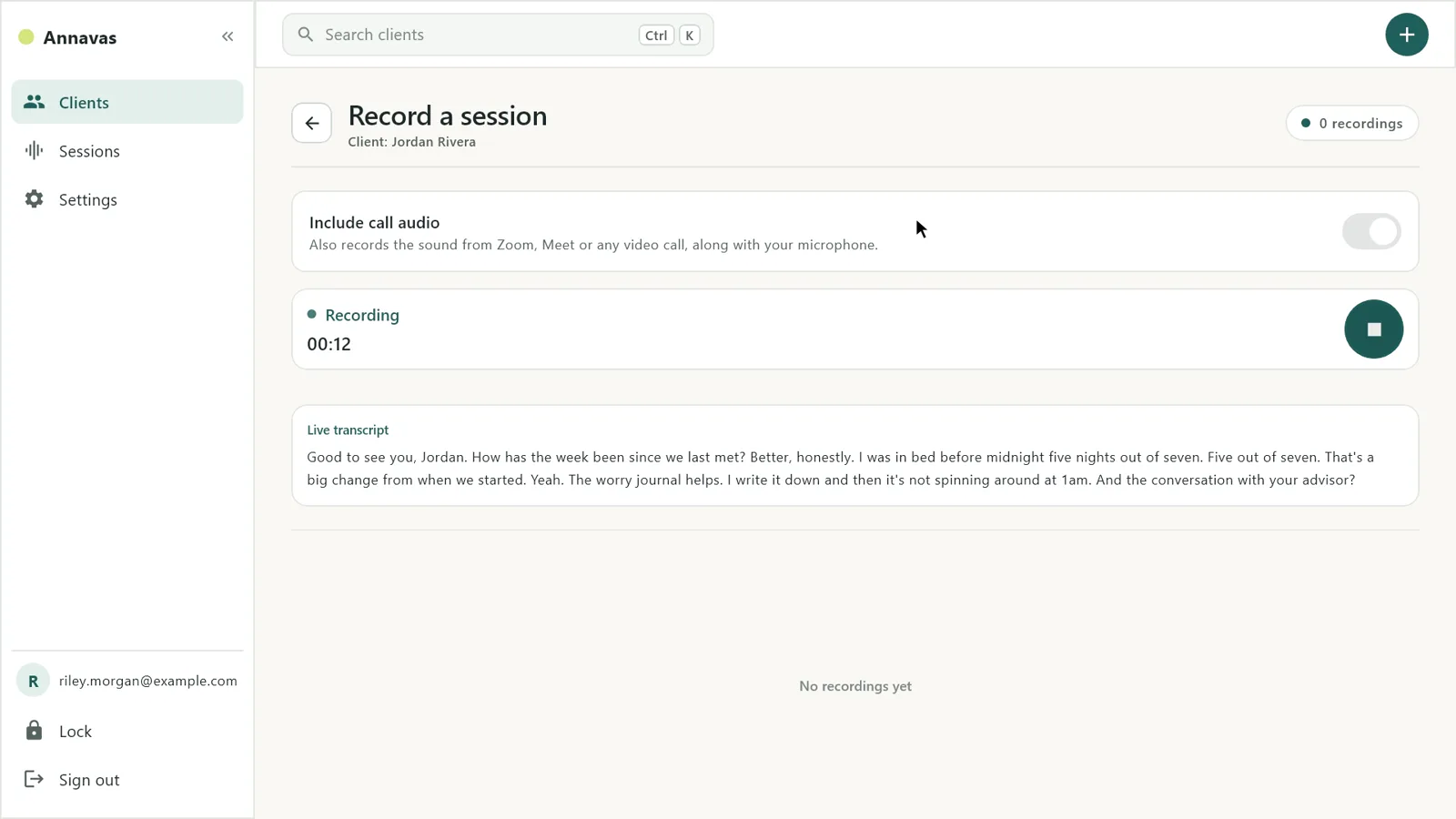
Open the client and choose Start session. Or use the + button and choose New session, and assign it to a client later.
For video sessions, turn on Include call audio. Annavas then records the sound from Zoom, Meet or any video call along with your microphone, still entirely on your computer.
Press the microphone button to start. The live transcript follows the conversation so you can see it is working. The first time, your computer may ask for microphone permission.
Press the stop button when the session ends. Annavas asks whether to write the note now or later.
Press Write note and carry on with your day. Annavas writes it in the background, on your computer.
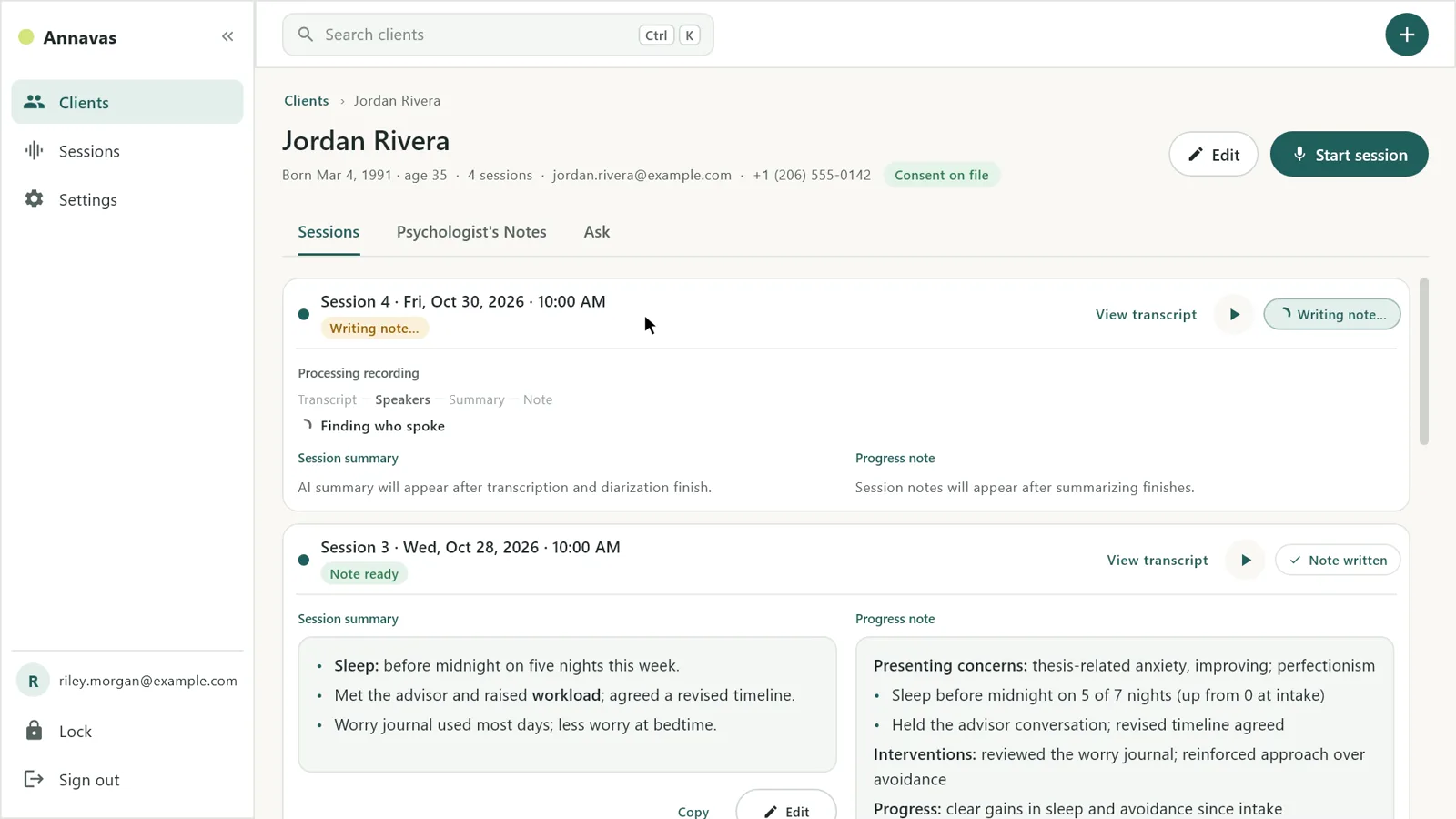
Choose Write note after you stop, or press Write note on any session later.
Annavas writes the transcript, works out who spoke, writes the session summary and then the progress note. You can see each step on the session.
Every session shows its status: Writing note… while it works, then Note ready. Sessions without a note show Write note.
You can open other clients while the note is written, and your computer stays awake until it is done. Long sessions of an hour or more are written in parts.
You read and approve every note. Each session has a session summary and a progress note.
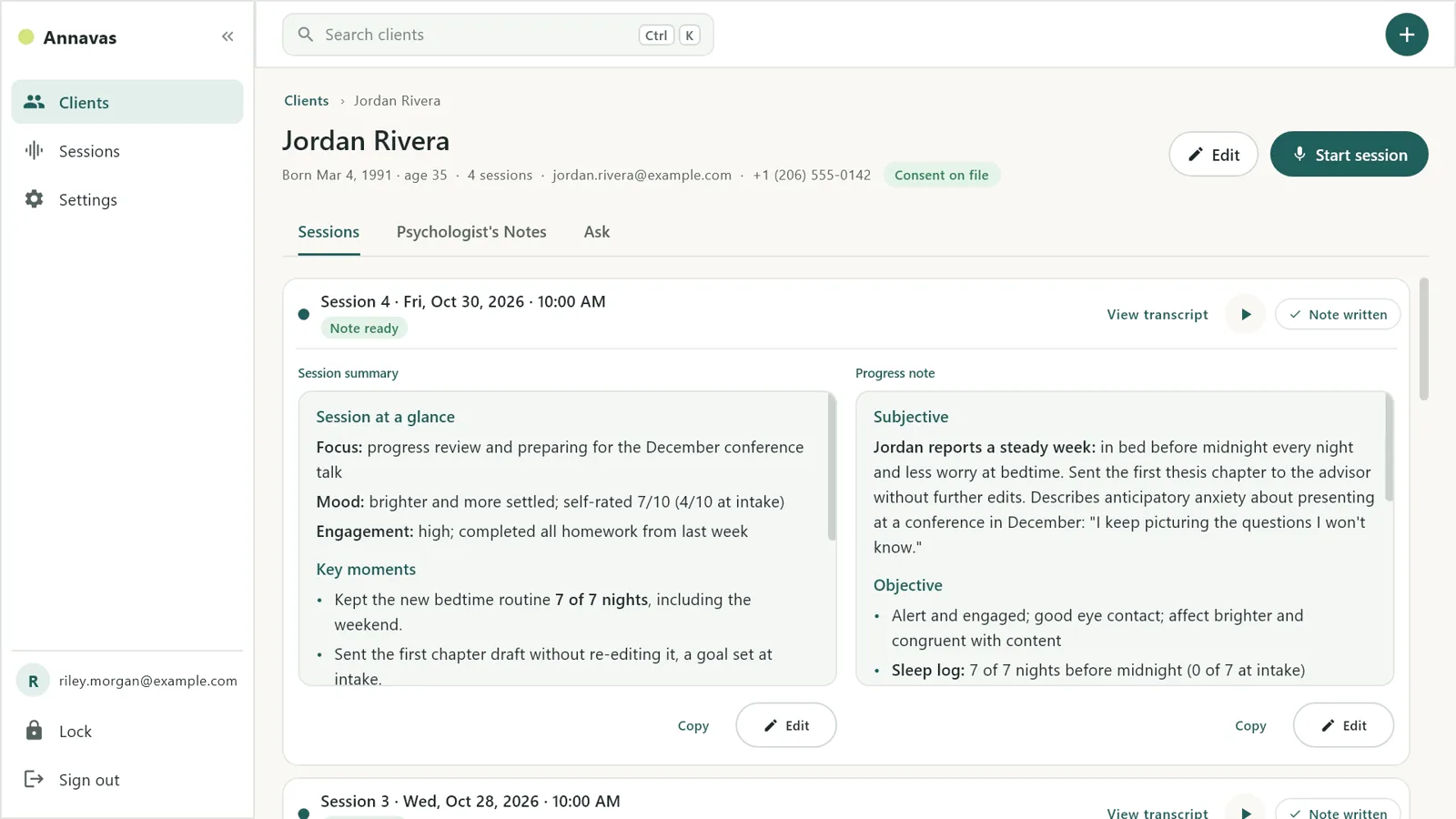
The session summary gives the key moments and action items. The progress note is the note for your records, written in sections such as Subjective, Objective, Assessment, Interventions and Plan.
Notes open formatted, with headings, bullet points and bold labels.
Choose Edit to change anything, then Save. A Note saved message confirms it. Undo changes puts the note back as it was.
Choose Copy and paste the note into SimplePractice, Jane, Owl Practice or whatever you already use.
Choose how much Annavas writes in Settings → Notes → Note detail.
A quick read before the next session: how it went, what stood out and who does what next.
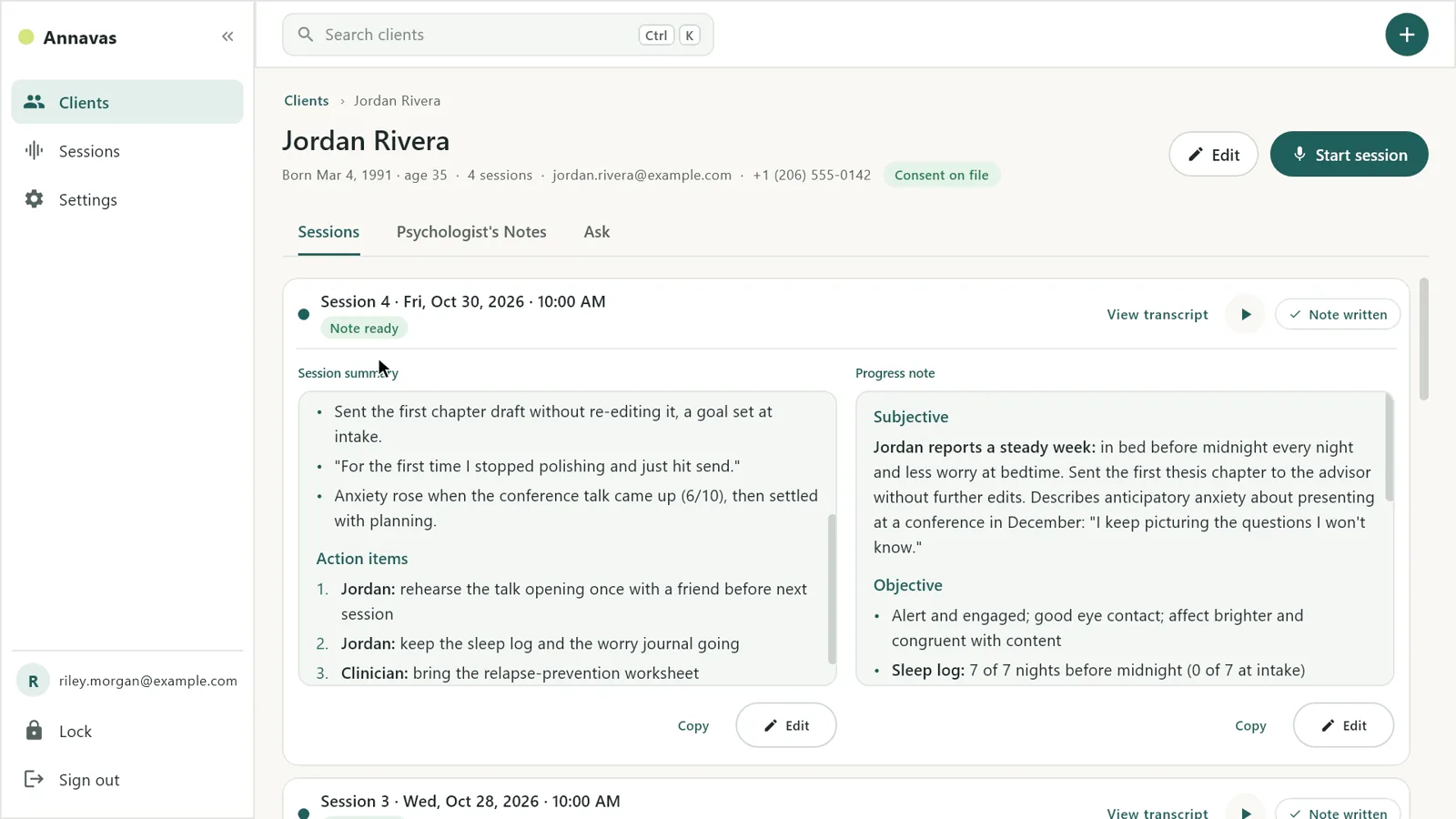
The focus of the session, mood and engagement in a few lines.
What changed since last time, and notable things the client said.
A numbered list of next steps and who they are for, such as homework for the client, something for you to bring, and the next session.
View transcript opens the whole session by speaker, with search and copy.
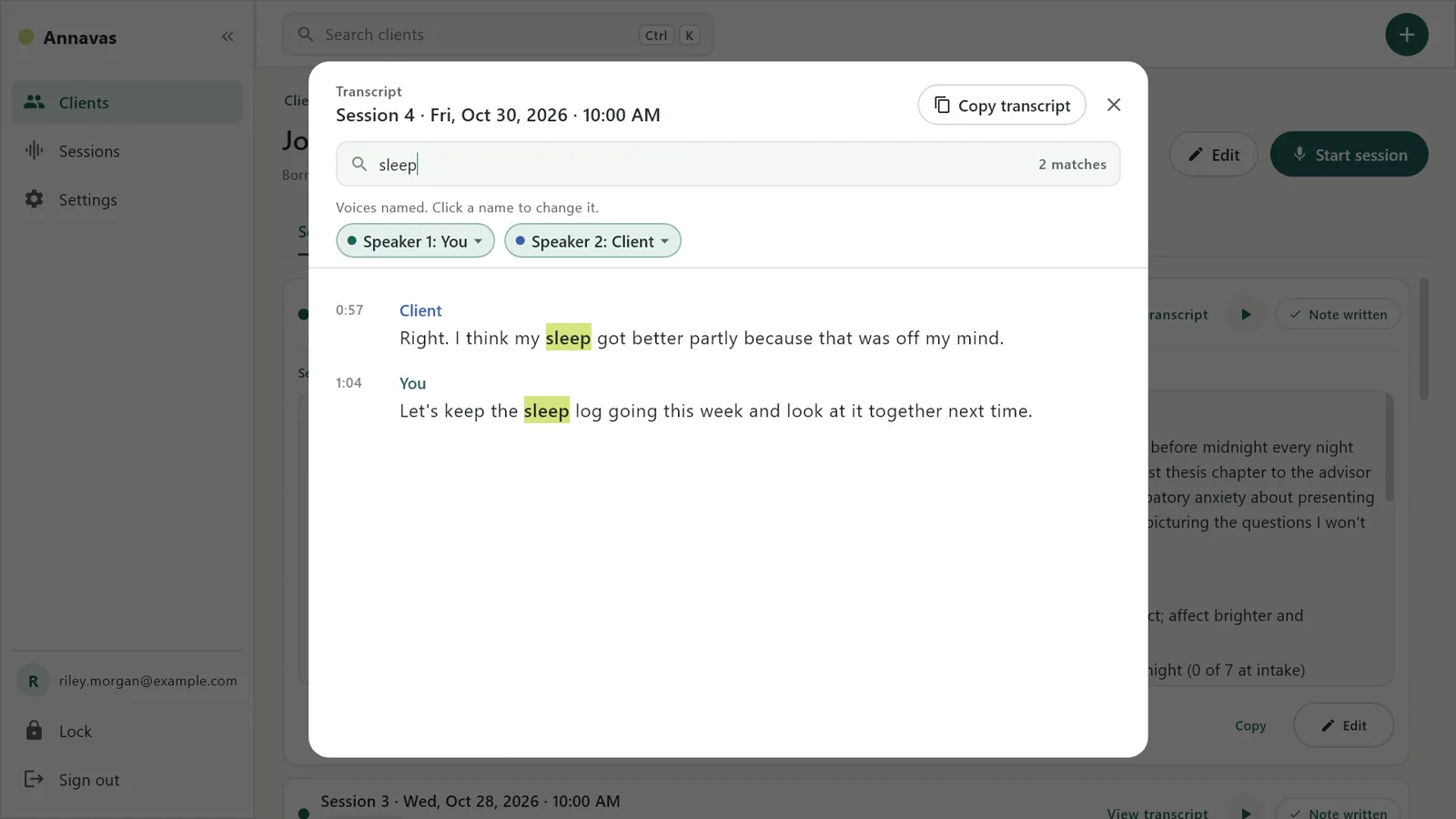
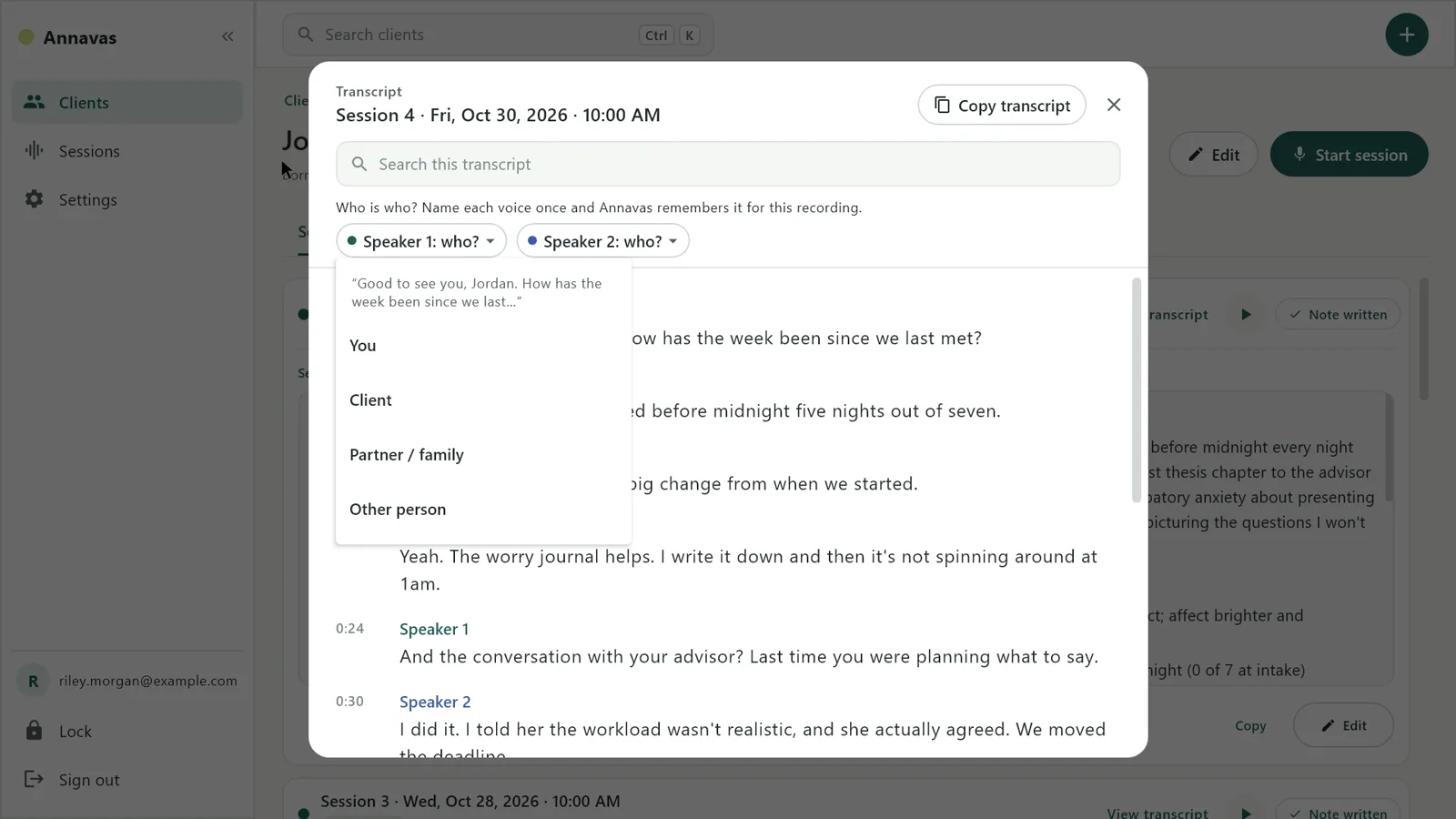
Choose View transcript on any session. Each turn shows the time and who was speaking.
Name each voice once: You, Client, Partner / family or Other person. Annavas remembers it for that recording and uses the names in the transcript, the copied text and the subtitles. Only the role is saved, never a typed name.
Type in the search box to highlight every match.
Copy transcript copies the whole conversation with names and times.
Play a recording with subtitles, and click or drag along the waveform to jump to any moment.
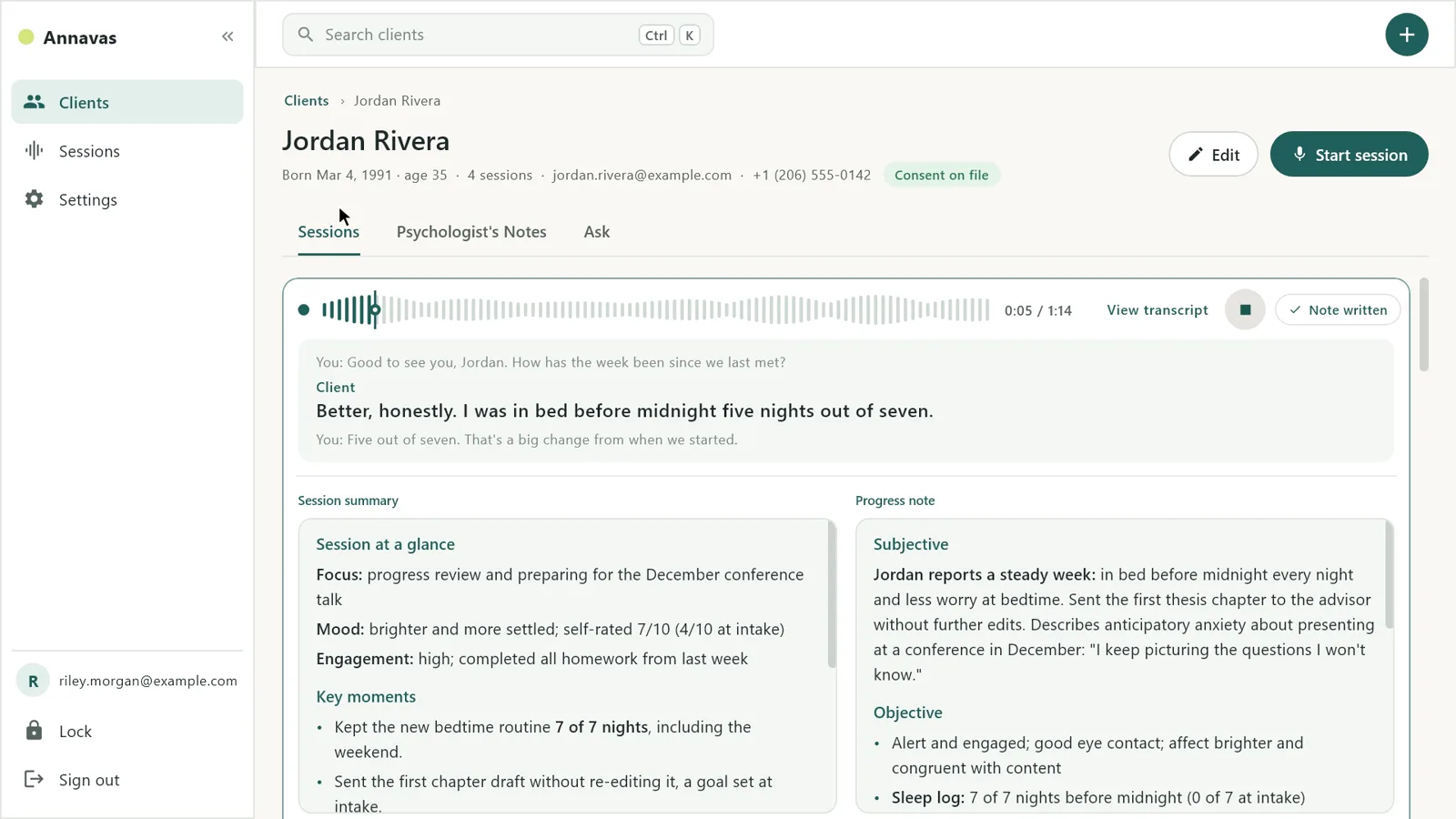
Press play on a session. The waveform fills in as it plays, with the time on the right.
Click anywhere on the waveform to jump there, or drag the playhead and let go.
The words appear under the waveform as they are spoken, with the speaker names you chose.
Audio and transcripts are deleted on the schedule you set in Settings. The summary and progress note are kept. Sessions whose audio was deleted show Audio expired.
A private running record for each client across all their sessions. It is yours, separate from the chart note.
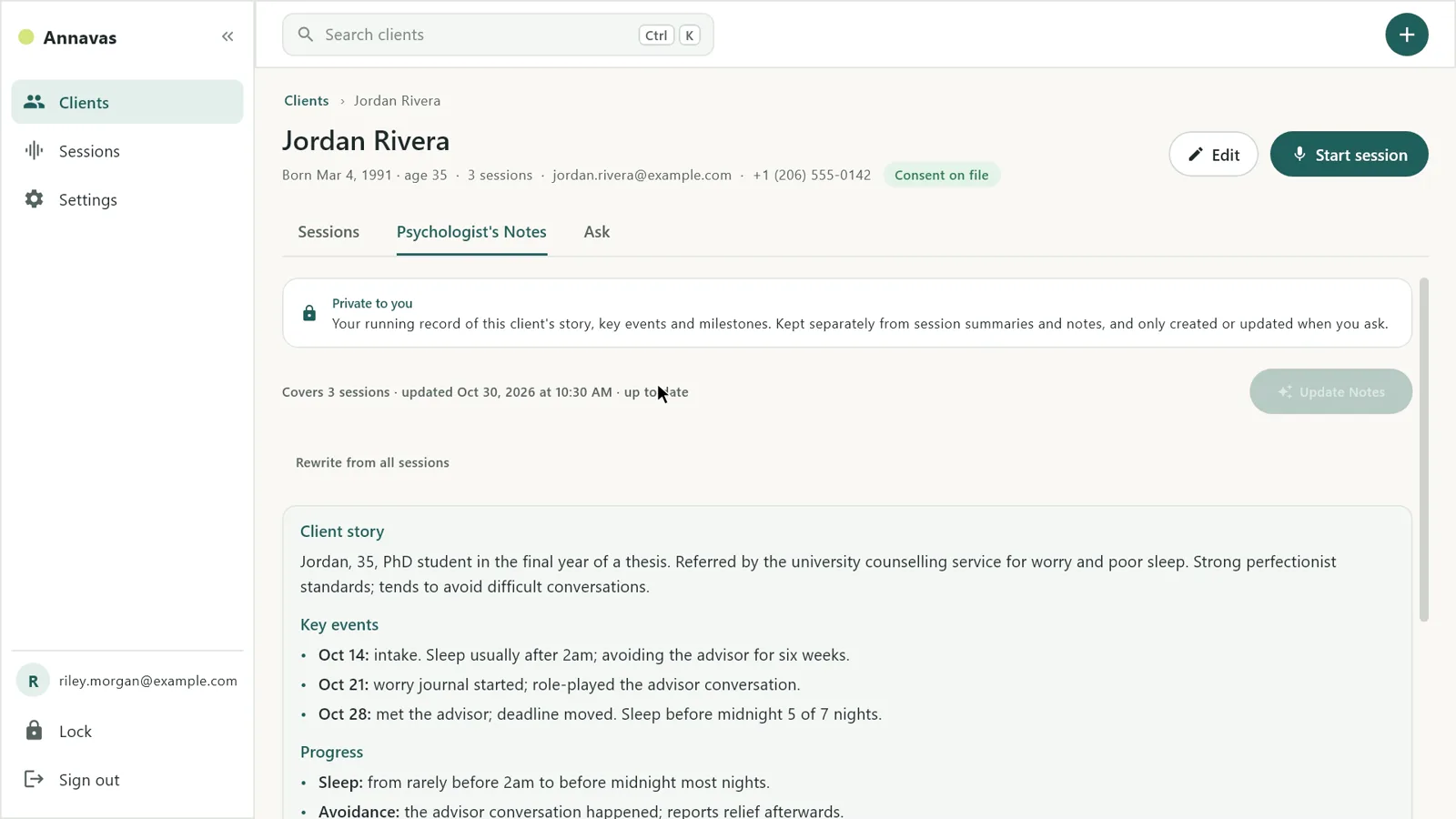
Open the Psychologist’s Notes tab and choose Generate Notes. Annavas writes the client story, key events, progress, recurring themes and what to follow up, from your session summaries.
After new sessions, choose Update Notes to add just what is new. Your own edits are kept.
Rewrite from all sessions starts over from every session summary.
Psychologist’s Notes are never created automatically, and you can edit and save them like any note.
Ask a question about a client’s history and get an answer drawn from your own session notes, on your computer.
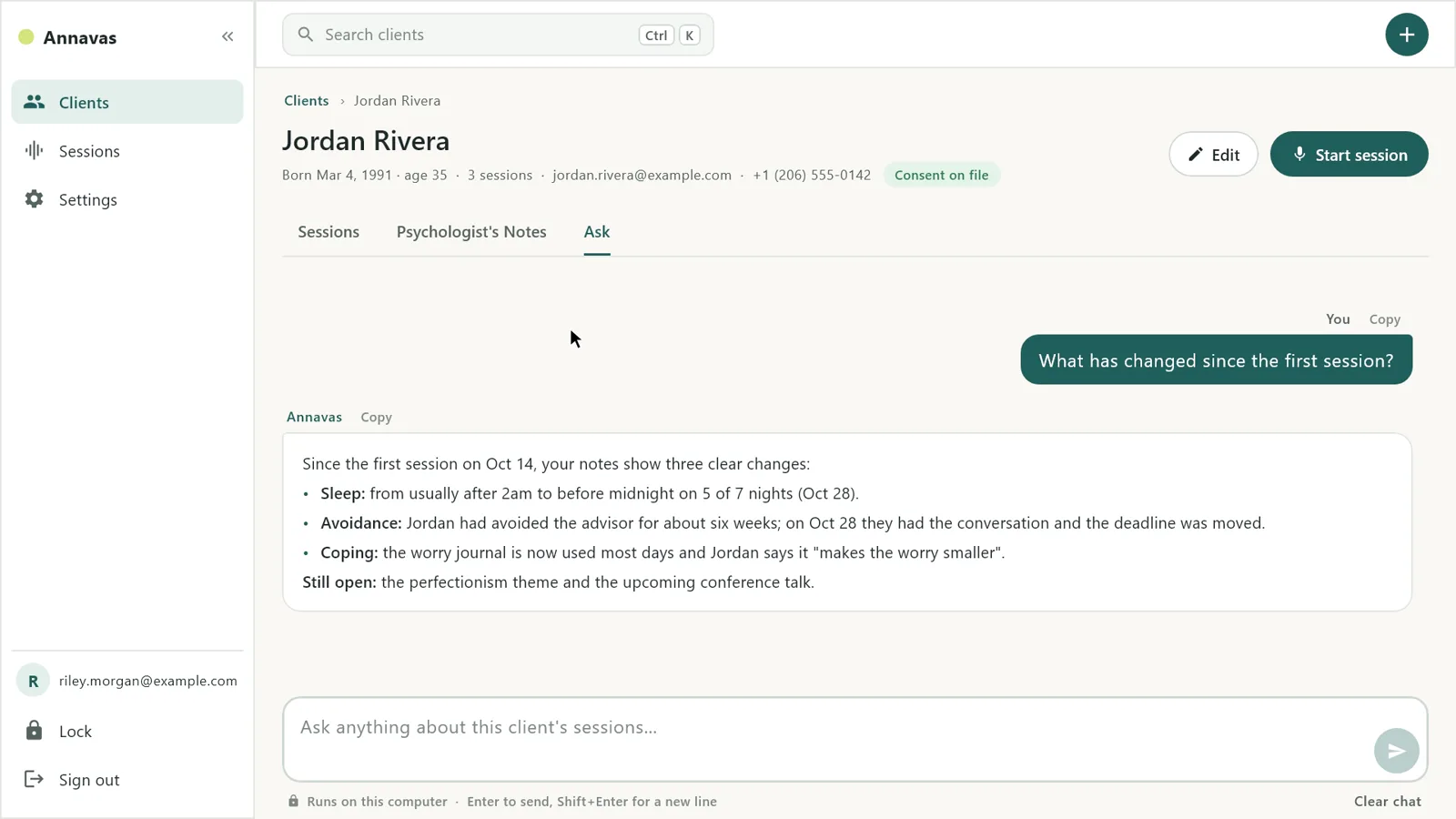
Open the Ask tab on the client’s page. Pick a suggested question, such as What has changed since the first session?, or type your own.
Enter sends your question; Shift+Enter starts a new line.
Answers come from your own notes for that client. Check anything you rely on; Annavas does not give clinical advice.
Copy any answer, or choose Clear chat to start over.
The Sessions page lists every recording, grouped by client, with the newest first.
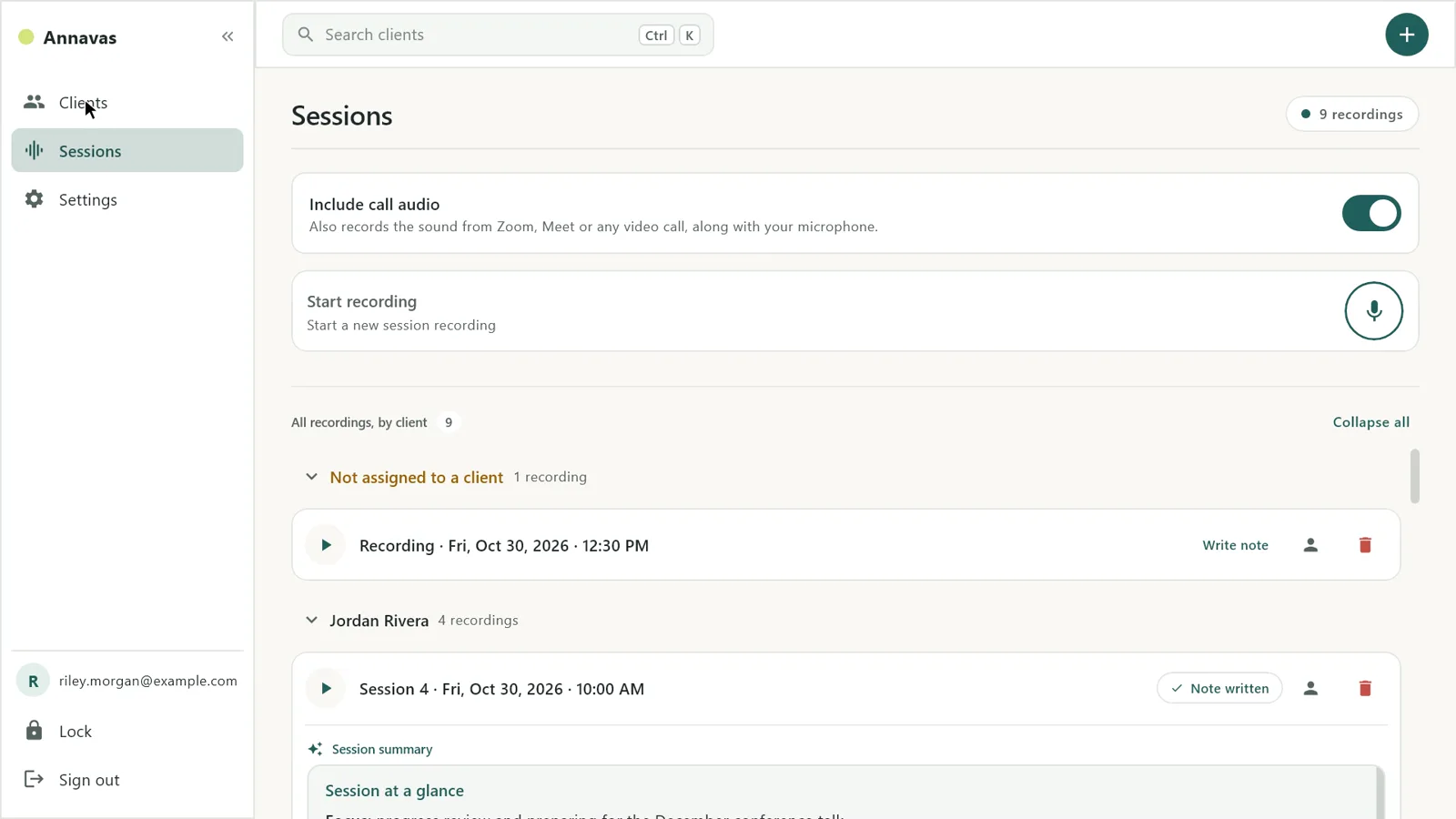
Each client is a group you can fold away. Collapse all and Expand all are at the top.
Recordings started without a client appear first. Use the person icon to assign one to a client.
Each recording has Write note (or Note written), play and delete.
The Include call audio switch is here too, for video sessions.
Settings is one page with sections on the left. Make your changes, then choose Save changes.
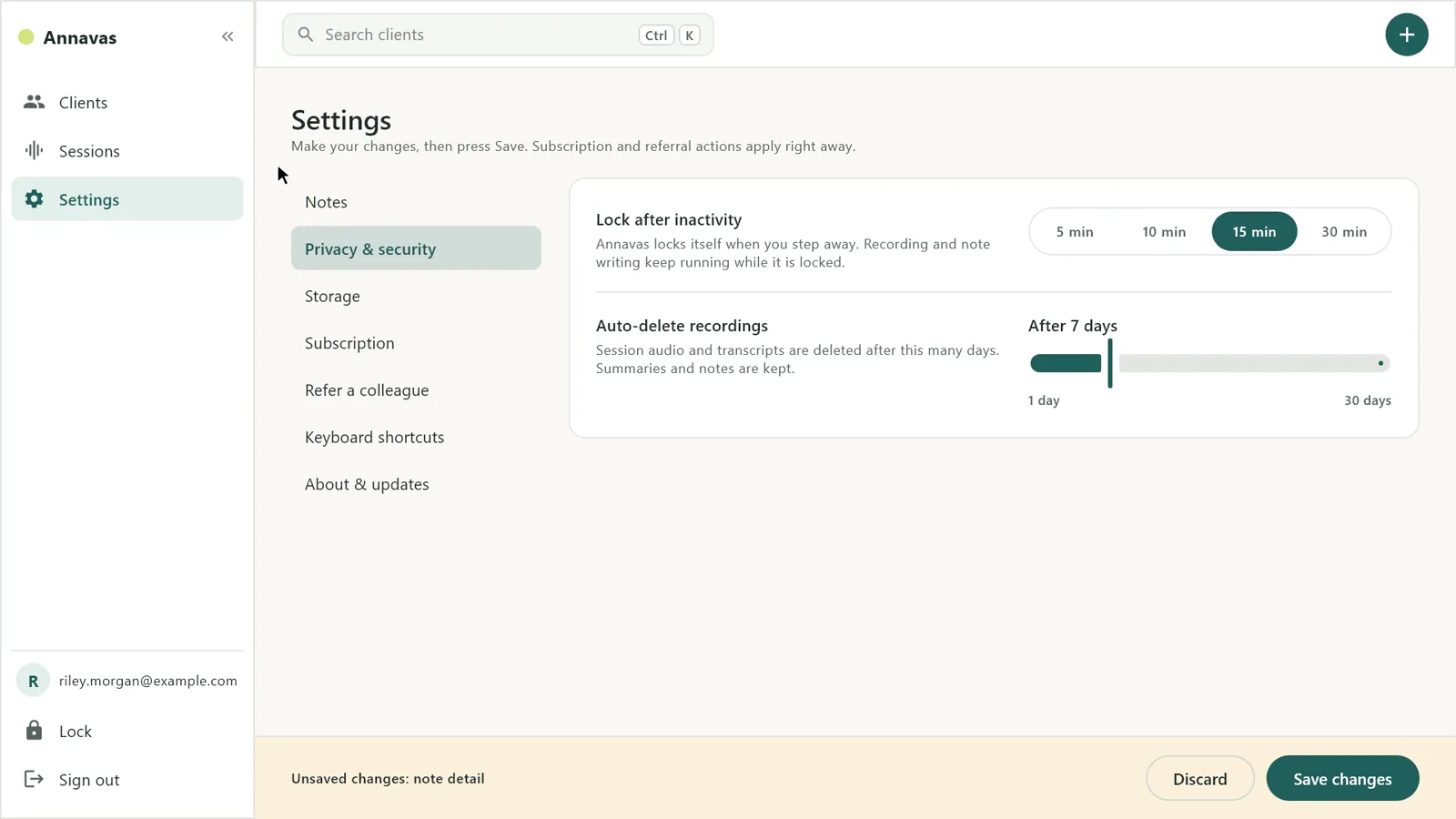
Note detail: Brief, Standard or Detailed.
Lock after inactivity (5, 10, 15 or 30 minutes) and Auto-delete recordings (after 1 to 30 days).
The folder where Annavas keeps your encrypted files. Change folder or Open folder.
Changes wait until you choose Save changes; Discard puts them back. A Settings saved message confirms it.
Your plan status and license key, with Copy, Check again and Remove from this computer. Subscription changes apply right away.
Your version, Check for updates and Send feedback. Annavas updates itself, and every update is signed by Annavas so your computer can confirm it is genuine.
A few keys that save clicks. On a Mac, use ⌘ (Command) where Windows uses Ctrl.
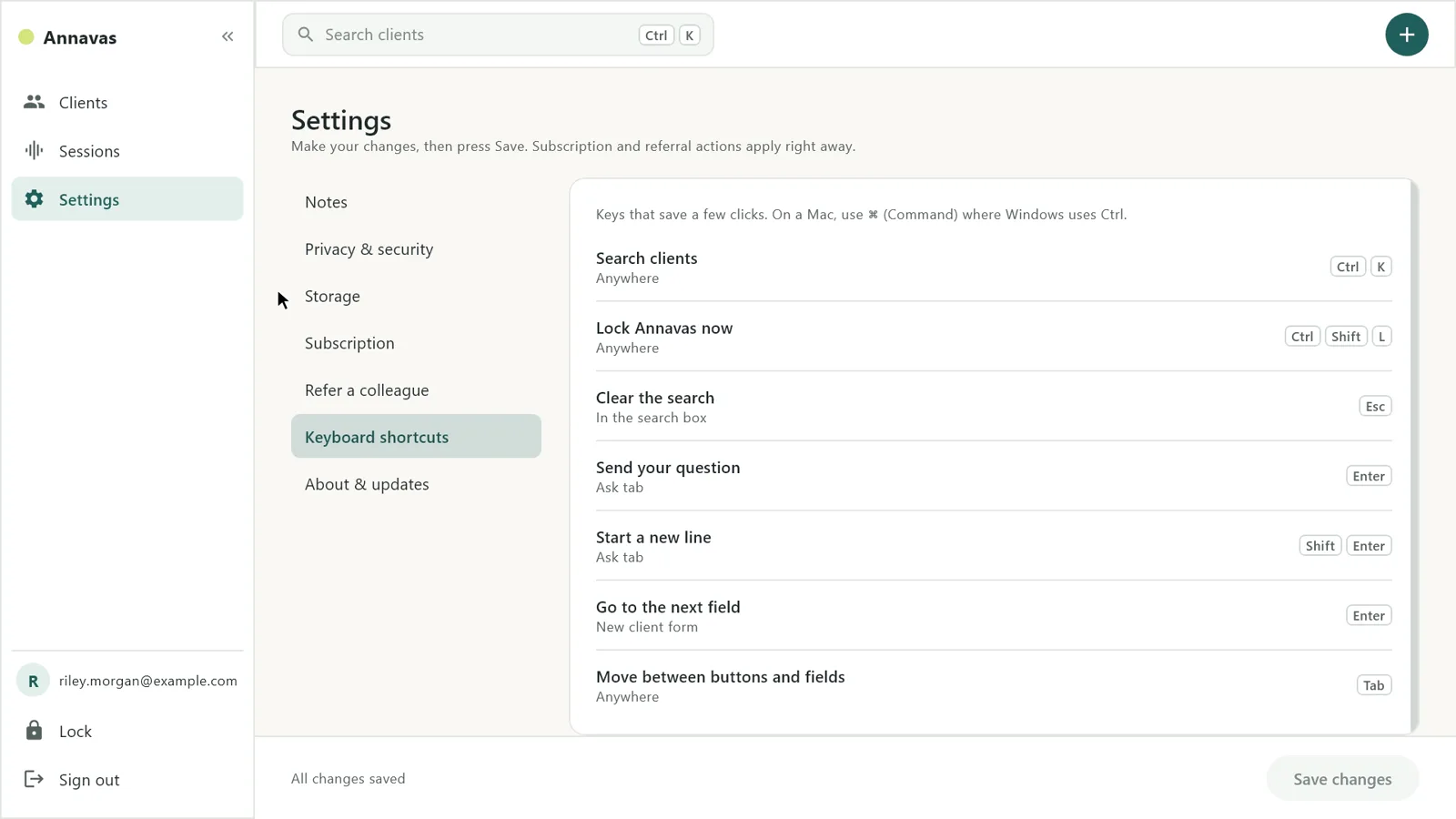
Search clients from any page.
Lock Annavas now.
Clear the client search.
In Ask, send your question / start a new line.
Move to the next field in the new client form.
Annavas locks itself after a few minutes away, and opens again with Windows Hello, Touch ID or your password.
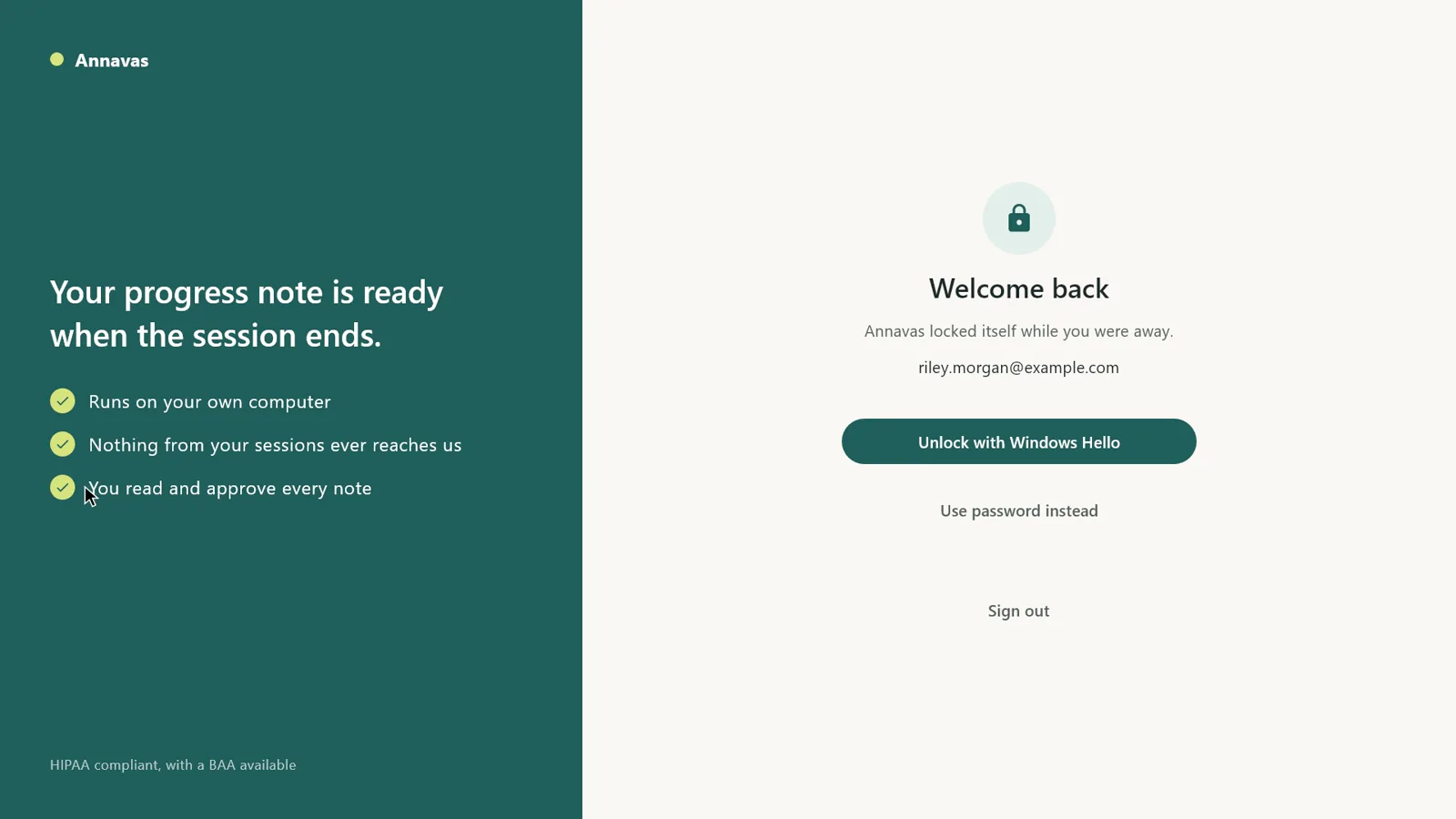
After the time you choose in Settings, Annavas locks and hides client details. A recording and note writing keep going while it is locked.
Choose Lock in the sidebar, or press Ctrl+Shift+L (Cmd+Shift+L on a Mac), when you leave your desk.
Unlock with Windows Hello or Touch ID, or choose Use password instead. You are back where you were.
Share your own code. Your colleague gets 30 days free instead of 15, and you get $5 off when they pay their first bill.
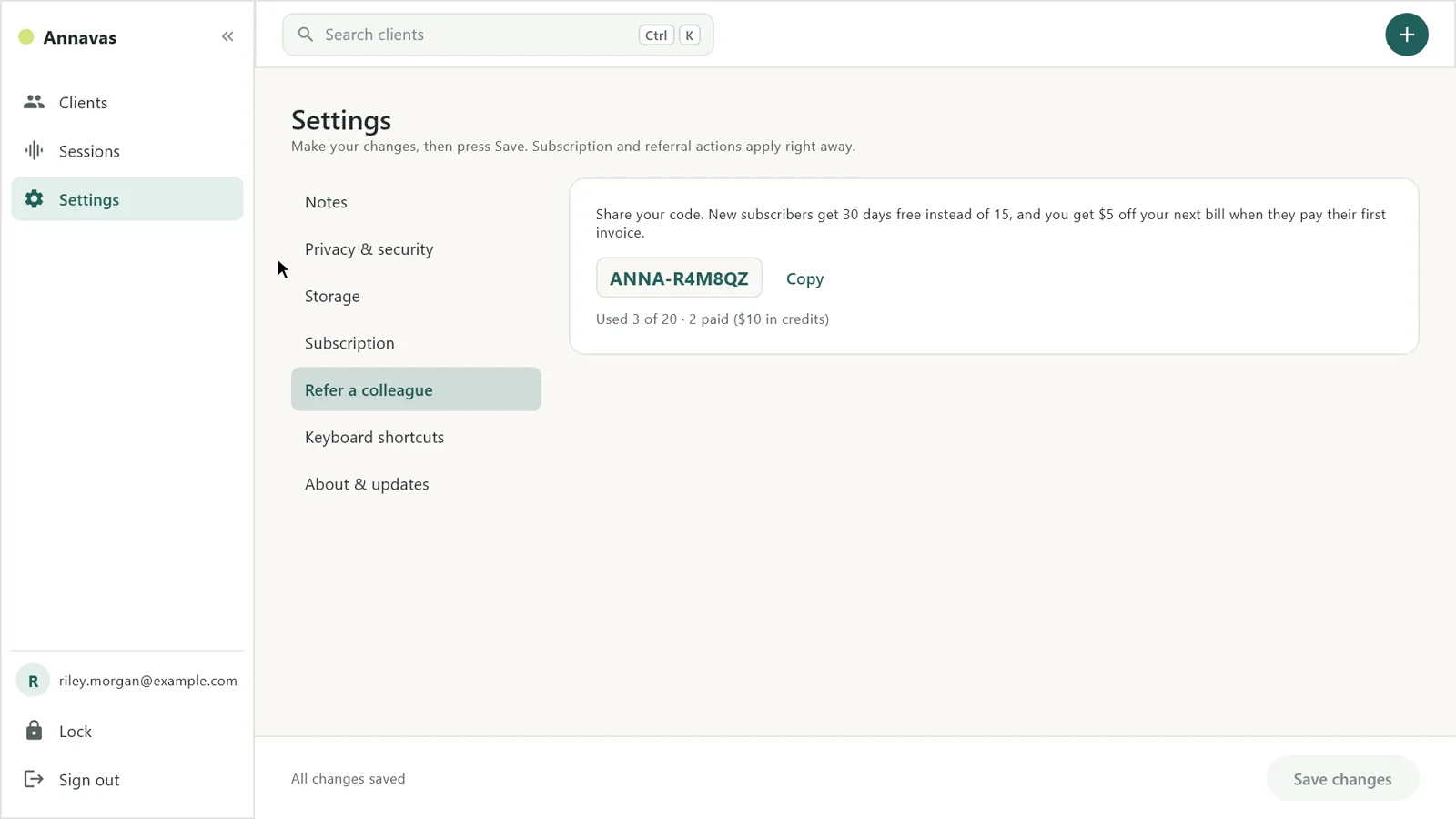
Open Settings → Refer a colleague. Your code is there, with Copy.
When someone who used your code pays their first bill, $5 comes off your next bill. Credits add up and carry over.
The card shows how many people have used your code and how much credit you have earned.
Need a hand?
If something in Annavas does not look like this manual, or you are stuck on a step, get in touch and we will walk you through it.